Insignia Fire TV Remote
NabaHouse & Home
3.8170.00 Reviews
- Version
- 1.0.11
- Installs
- 100.00K
- Age Rating
- Everyone
Screenshots
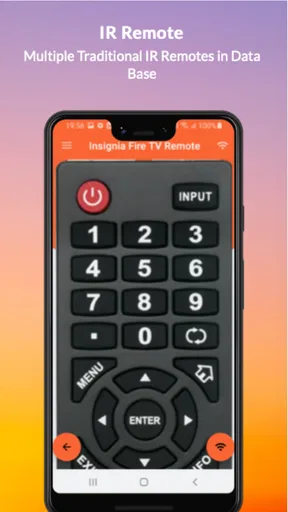
Our Review of Insignia Fire TV Remote
 Analysis by Appyee
When the physical remote for an Insignia Fire TV disappears between the sofa cushions, the problem is surprisingly disruptive. You may still have a working television and a working streaming account, yet getting back to a film or changing the volume becomes awkward. I tested Insignia Fire TV Remote from Naba with that everyday situation in mind, treating it less like a novelty remote and more like a temporary bridge between a phone and a Fire TV setup.
This is a free House & Home app for Android, aimed at controlling a compatible Fire TV device and Insignia television from a mobile screen. It is rated for Everyone, runs on Android 5.0 or later, and its current release is version 1.0.11. Those details make it accessible to people using older Android phones, although the age of a phone alone does not guarantee that the connection to a particular television will work smoothly.
After using it, my view is fairly practical: it can be useful when the original remote is missing or inconvenient, but it should be approached as a backup control rather than an automatic replacement for every Insignia remote. The important part is not simply installing it. The real experience depends on getting the phone, the Fire TV device, and the television onto the same working path.
From a missing remote to a usable screen control
Before relying on a phone as a television remote, I’d first think about the moment it needs to help: a missing controller, a quick pause, or a menu that needs navigating. This section looks at how Insignia Fire TV Remote can make that handoff practical, while keeping the setup steps and everyday trade-offs in view.
The starting condition matters more than the download
The most realistic use case is a familiar one. I imagine arriving home, switching on the television, and finding that the dedicated remote is either lost, out of batteries, or left in another room. With a physical remote, I would normally press a button and continue. With this app, the phone becomes the new starting point, so I first need to make sure it has enough charge, is close to the television, and is connected to the same home network used by the Fire TV equipment.
That last point is where many remote-control apps become confusing. A phone can have internet access and still fail to discover a television if the phone and streaming device are separated by different network settings. A guest network, a range extender, or a router that isolates connected devices can interrupt the handoff. This is not a flaw I would assign exclusively to Naba, but it is a practical condition worth checking before blaming the app.
Because the app is free, there is little financial risk in trying it. Its audience is also broad: a 100K-plus install count shows that many people have looked for this kind of replacement, while the average score of 3.8 from around 1.6K ratings suggests a useful but uneven experience rather than universal perfection. I read that combination as a warning to keep expectations realistic. The app solves a specific control problem; it does not remove every setup dependency.
My first recommendation is to treat the installation as one part of a short recovery process. Keep the television awake, confirm that the Fire TV device is powered, and avoid testing from the far end of the house. If the physical remote is still available, keep it nearby during the first attempt. It gives you a way to wake the device or open the right input if the app has not connected yet.
Opening the app and establishing the connection
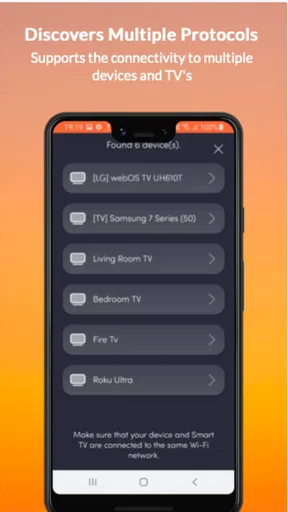
Once installed, I would open the app with the television already on. The useful mental model is pairing rather than instant control. The phone needs to find the intended Fire TV equipment, and a household with more than one compatible device can make that selection important. Choosing the wrong screen would create a frustrating situation where the remote appears functional but affects another television.
This is one of the less obvious trade-offs of using a phone as a remote: the phone is powerful enough to hold several roles, but that flexibility also makes it easier to control the wrong device. I would identify the television by its position in the home before tapping through the connection process. If another family member is watching something, this small check prevents an accidental interruption.
The app is specifically presented around Fire TV and Insignia Fire TV control, so I would not assume it is a universal remote for every television in the house. A compatible Insignia setup is the sensible target. If the television is a different brand or uses a different platform, a manufacturer-specific application or the original remote may be a better first choice.
When the connection succeeds, the phone changes from a general touchscreen into a dedicated control surface. That transition is convenient, but it also creates a small learning curve. A physical remote has fixed buttons that can be found by touch. A phone screen is visually clear, yet I need to look down more often, especially when navigating menus in a dark room.
Moving through menus without losing the handoff
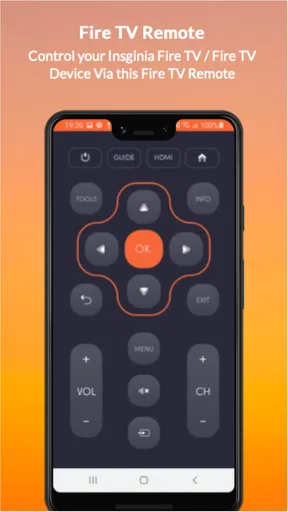
For ordinary navigation, I would use the app after the Fire TV home screen is already visible. This is where a phone remote is most helpful: moving through rows, selecting an application, backing out of a screen, or pausing a programme without searching for a small plastic controller. The outcome is not dramatic, but it is exactly the kind of small convenience that makes a missing remote less urgent.
A useful workflow is to keep the phone unlocked before starting a search. If the screen goes to sleep between every action, the control process becomes slower than it needs to be. I would also avoid switching repeatedly between the remote interface and another app while navigating. Every interruption adds another handoff, and a phone is more likely than a physical remote to be pulled into notifications, messages, or a separate task.
That is a genuine strength and weakness at the same time. The phone is usually close at hand, and a free app can save a trip to the store for a replacement remote. However, it is not always ready for immediate input. Battery-saving settings, screen locking, or a weak network can turn a simple volume adjustment into a troubleshooting exercise.
I found the best role for it to be short sessions: start playback, pause during cooking, move through a menu, or make a quick adjustment. For a long evening of channel or app browsing, a physical remote remains more comfortable because it can be used without looking and does not compete with the phone’s other functions.
Handling the handoffs between people and devices
The editorial detail that matters most here is the handoff. Control passes from the viewer to the phone, from the phone to the network, and from the network to the Fire TV device. Each transfer can introduce friction. If I hand the phone to another person, that person must understand which screen is active and which television is selected. If the phone is taken out of range, the connection may no longer feel dependable. If someone changes the network, the remote workflow can stop even though the television itself is still working.
In a shared home, I would establish one simple habit: the person who starts the session keeps the phone available until playback is stable. After that, the device can be handed over for occasional control. This avoids the common mistake of passing the phone away immediately and then discovering that nobody knows whether a tap was registered.
There is also a privacy and practicality angle to the handoff. A phone used as a remote may contain personal notifications, open conversations, or work information. Giving it to a child or guest is not the same as handing over a basic remote. For a family room, a dedicated physical controller can be the better choice when several people need frequent access without touching someone’s phone.
On the other hand, the phone approach is convenient for visitors who do not know where the remote is kept. Rather than explaining every button on an unfamiliar controller, I can open the app and demonstrate the basic navigation. That makes the app particularly useful as a temporary household solution, provided the connection has already been established.
What the result feels like in daily use
The successful outcome is straightforward: the television responds to commands from the Android phone, and the missing or inconvenient physical remote stops being an immediate obstacle. I would consider that a practical win, especially when the original controller has vanished at the exact moment someone wants to watch something.
In a realistic evening scenario, I might place the phone on the arm of the sofa, open the app, select the Insignia Fire TV device, and use it to launch streaming content. During playback, I could pause the programme while answering the door and resume without searching for the original remote. When the session ends, I would return the phone to normal use rather than leave it permanently assigned to the television.
This workflow also shows where the app is stronger than a conventional replacement purchase. A new physical remote requires finding the correct model and waiting until it is available, while this app can be tried immediately and costs nothing. It is especially sensible as an emergency option for a spare room, a guest television, or a household where the physical remote is regularly misplaced.
Compared with a manufacturer’s broader smart-home application, this focused remote has a simpler purpose. A larger official app may be preferable when I want account management, device settings, or a wider collection of smart-home controls in one place. Insignia Fire TV Remote makes more sense when the immediate goal is basic television control and I do not want a full smart-home dashboard.
Compared with a generic universal remote app, the Insignia focus is another useful distinction. A universal tool may cover more brands, but that breadth can make setup and device selection less direct. For an Insignia Fire TV owner, a focused remote is easier to evaluate: either it connects to the intended equipment and provides the needed control, or it does not fit the setup.
Where the workflow breaks
The first likely break is discovery. If the app cannot find the television, I would check the phone’s network, the Fire TV device’s network, and whether both are actually awake. Restarting the app may help, but repeatedly tapping the same control without checking the network path is unlikely to solve anything. The physical remote remains valuable at this stage because it can wake the device and verify that the television itself is responding.
The second break is device ambiguity. In a home with multiple Insignia or Fire TV screens, the wrong selection can look like a failed connection. I would test one television at a time and temporarily move closer to the intended screen. This is a simple but effective diagnostic step that store descriptions rarely explain.
The third break is usability rather than connectivity. Even when the app works, a phone screen is not as tactile as a remote. I cannot easily feel the direction buttons in the dark, and I may lock the screen accidentally or receive an interruption at the wrong moment. For someone who watches television for hours and changes settings frequently, those small inconveniences add up.
There is also a clear situation in which I would skip this app. If the household needs dependable control without relying on a phone, a replacement physical remote is the better investment. I would make the same choice for an older family member who finds touchscreen controls uncomfortable, or for a television in a room where the phone is rarely present. The free price is attractive, but convenience is not measured only in money.
Another reason to choose a different option is platform mismatch. This is an Android application with a minimum operating-system requirement of 5.0, so someone using an iPhone or an older Android device outside that requirement should look for a compatible alternative rather than expect this particular app to solve the problem. Even on a supported phone, the television and network still need to cooperate.
Small habits that make the app more dependable
I would keep the app available on the phone used most often in the room, rather than installing it on several devices before confirming that one works. This reduces confusion during troubleshooting and makes it clear which phone is currently responsible for control. Once the process is reliable, adding another household phone becomes easier to manage.
I would also test the remote before an important viewing session. A two-minute check is enough to reveal whether the television is discoverable and whether the selected device is correct. This is particularly useful before guests arrive, because the worst time to learn about a network problem is when everyone is waiting for a film to start.
For battery-conscious users, the app is best treated as an occasional controller instead of a permanent replacement for the physical remote. Keeping the phone plugged in while watching may solve one problem but create another if the charging cable limits where the phone can be used. A physical remote has a simpler job and remains more efficient for repeated, long-duration control.
Finally, I would avoid judging the app solely by the first failed connection. Remote apps are unusually dependent on the surrounding setup. Checking the same network, waking the television, selecting the correct device, and trying again from nearby gives a fairer test. If those steps still do not produce a usable connection, that is the point at which I would stop spending time and choose another control method.
My recommendation after following the complete workflow
Naba’s app earns its place as a practical backup for Insignia Fire TV owners who already have an Android phone and need control quickly. It is free, accessible to Everyone, and compatible with older Android versions from 5.0 onward. The 170 written reviews and its broader rating history suggest a mixed but meaningful user experience, which matches my own conclusion: the idea is useful, while the surrounding setup determines how smooth it feels.
I recommend it for the lost-remote scenario, short viewing sessions, spare televisions, and households that want a no-cost first attempt before buying hardware. I would not present it as a complete substitute for a physical controller in every home. Network dependence, touchscreen handling, device selection, and the need to keep a phone available all matter.
The best way to use Insignia Fire TV Remote is as a recovery tool with a clear workflow: prepare the television, connect the phone and Fire TV device through the same network, confirm the correct screen, and keep the phone available until playback is settled. When that sequence works, the app turns an annoying missing-remote problem into a manageable inconvenience. When the sequence breaks, a conventional remote remains the more dependable answer.
Verdict
Strengths of Insignia Fire TV Remote
- Simple setup with most Fire TV devices
- Convenient keyboard for faster text entry
- Useful replacement when the physical remote is missing
- Supports navigation, playback, and app launching
- Compact alternative that avoids extra hardware
Limitations of Insignia Fire TV Remote
- Requires the phone and Fire TV to use the same Wi-Fi network
- Ads or in-app purchases may affect the free experience
- Touch controls can feel less precise than physical buttons
- Phone notifications or calls may interrupt remote use
- Some TV functions may be unavailable through the app
Other Releases by Naba
View All
HiSense Smart TV Remote
House & Home4.7

Element Smart TV Remote
House & Home4.5
Similar Picks in This Category
View All
Universal TV Remote Control
CodeMatics Media Solutions3.9

AlfredCamera Home Security app
Alfred Systems Inc.4.7

Planner 5D: AI Home Design
Planner 5D4.5

Universal Tv Remote-Cast to TV
One Music Player4.1

Zillow: Homes for Sale & Rent
Zillow Group4.8

99acres Buy/Rent/Sell Property
infoedge.com4.3
Frequently Asked Questions
What is Insignia Fire TV Remote, and what devices does it support?
Insignia Fire TV Remote is a mobile remote-control solution designed for compatible Insignia Fire TV televisions and Fire TV Edition devices. It typically lets you navigate menus, adjust playback, open applications, and use a keyboard from your phone. Before downloading, check that your television is an Insignia model with Fire TV built in and that your smartphone and TV can connect to the same Wi-Fi network.
How do I connect the app to my Insignia Fire TV television?
After installing the app, connect your phone and Insignia Fire TV to the same wireless network. Open the remote application and allow it to scan for available devices, then select your television from the list. A pairing code may appear on the TV screen and must be entered on the phone. If the TV is not detected, verify the Wi-Fi connection and restart both devices.
Can I use Insignia Fire TV Remote without Wi-Fi or an internet connection?
In most cases, the phone and television need to be connected to the same local Wi-Fi network for the app to communicate with the Fire TV system. The internet itself may not be required after both devices are connected locally, but mobile data alone usually will not work. If your home network is unavailable, a physical remote or a compatible alternative may be necessary.
What features are available through the Insignia Fire TV Remote app?
Depending on the version and device compatibility, the app can provide directional navigation, select and back buttons, home and menu controls, playback commands, volume adjustment, and a text-entry keyboard. Some versions may also offer shortcuts for installed streaming services or voice-related controls. Feature availability can vary, so users should review the app description and permissions before installing.
Is Insignia Fire TV Remote safe, free, and compatible with every phone?
Compatibility and pricing depend on the specific app version, operating system, and publisher. Some remote apps are free but may include advertising, optional purchases, or requests for network-related permissions. Download it from a trusted official store, check recent reviews, and confirm the developer information. It may not work on every Android or iPhone model, particularly older devices or phones using restricted network settings.
